- Getting started
What do I need?
Installation and setup
Updating MultiViewer
Understanding telemetry
FAQ
- Usage
Authentication
Keyboard shortcuts
Syncing streams
Player context menu
Race Trace
- Configuration
Setups
- Troubleshooting
DRM/playback issues
- Privacy
App analytics
Syncing streams
When you watch several streams at once, you want them all to show the same moment. This page explains how MultiViewer lines up your players and live timing, and what you can do when something still doesn't match.
Why streams drift apart
Every F1 TV feed has its own delay. The international broadcast, F1 Live, the data channels and each on-board camera reach you separately, so the same overtake can show up earlier on one stream than on another. Live timing has its own delay as well.
To fix that, we sync F1 sessions by hand. For each session we line up every feed against the international broadcast and publish an offset per stream, one for live timing, and the moment the session starts. When you sync, MultiViewer downloads those offsets for the session and uses them to put every player in the right place.
Is this session synced?
In the list view of the schedule on the home page, each past F1 session has two small icons next to its button. The calendar view doesn't show them. The sync icon tells you whether we've published offsets for it. Hover over it to see which:
- "Session has been manually synced by MultiViewer" (blue): the offsets are there, and quick sync will line up your streams.
- "Session isn't manually synced yet by MultiViewer" (red): there are no offsets yet. You can still sync by hand.
The timer icon next to it is about live timing for that session:
- "Synced replay live timing is available" (blue): a replay of the timing will line up with the video.
- "Replay live timing is available but needs to be manually synced" (red): you can replay the timing, but we haven't lined it up with the video yet.
- "Live timing is available" (green): you can follow the session in live timing.
- "Replay live timing is being generated" (orange): the replay isn't ready yet.
- "Live timing is not available" (red).
Both icons are grey for upcoming sessions and for session types we don't sync.

Quick sync
Quick sync lines up every open player, and live timing, with the player you sync from.
- Open all the streams you want to watch.
- Pick the player the others should follow. The international broadcast is a good choice.
- Press S in that player, or right-click its sync button. That's the round button on the right edge of the player, which shows when you move the mouse over it. Its tooltip says "Configure sync (right click or press S to quick-sync)".
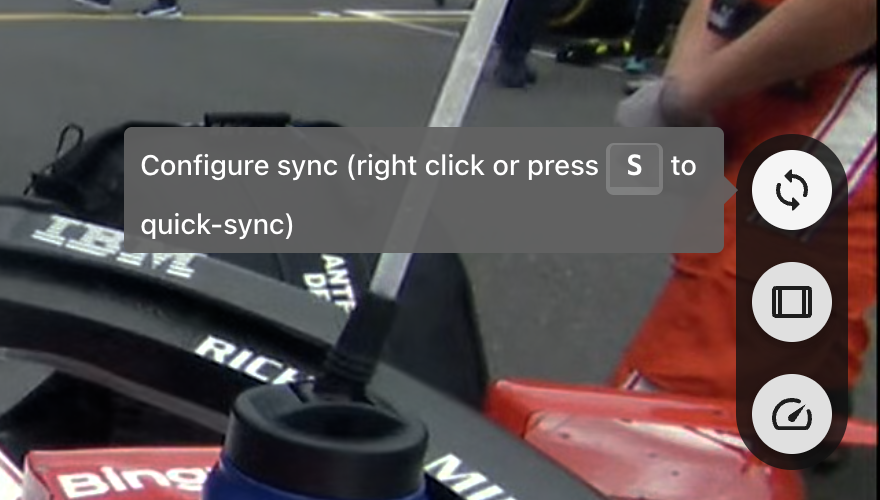
MultiViewer then fetches the offsets for the session and moves the other players.
- Live: each other player sets its target latency (how far behind live it plays) to match the player you synced from, corrected by its own offset, and jumps there. They also pause or play to match it. Live timing sets its delay to match.
- Replay: each other player seeks to the same moment in the session, and pauses or plays along with the player you synced from. A live timing replay seeks with them.
A sync happens once. If you seek in one player later, or the players have drifted apart, sync again.
Shift + Space plays or pauses the player you're in, then syncs the others to it.
On a session that isn't synced yet there's nothing to correct for. Live players stay where they are, and replays all jump to the same time into their video, which may not match. Use the steps under fine-tuning by hand instead.
The sync dialog
Left-click the sync button to open the sync dialog. At the top, "Mode" shows whether the player is "Live" or "Video on Demand".
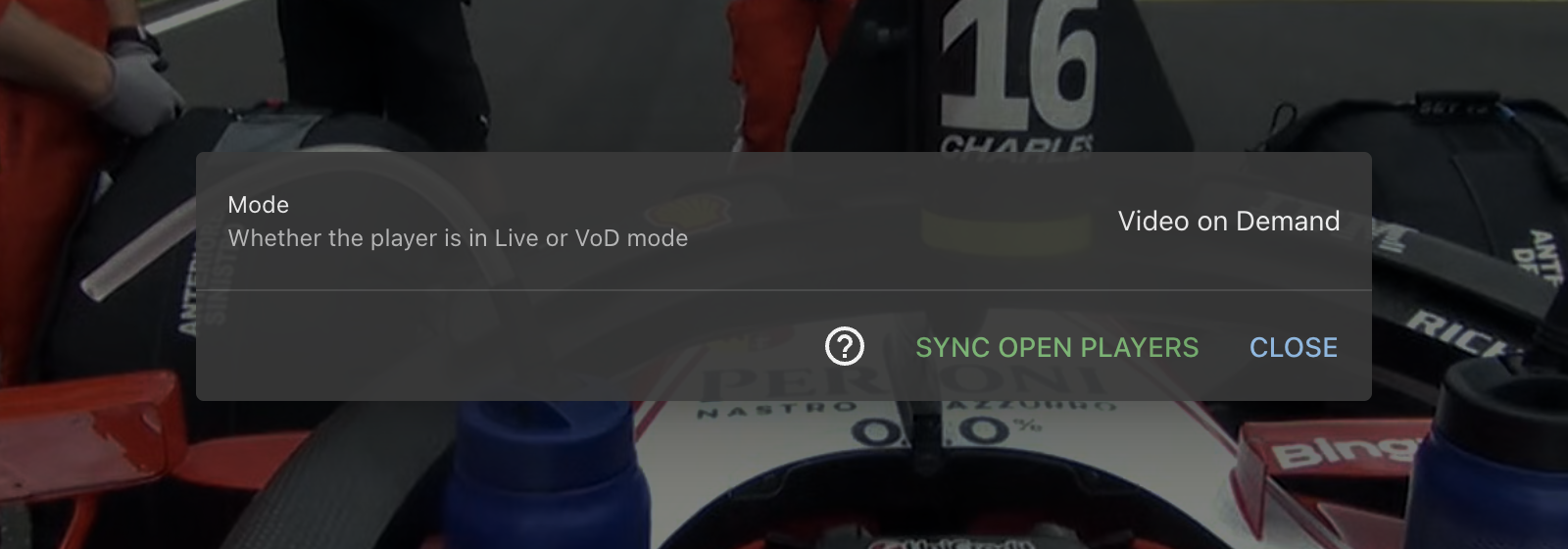
On a live stream, the "Live latency" section shows:
- "Target latency", the latency the player tries to hold.
- "Live latency", how far behind the live edge the player is right now.
- Buttons to change the target latency: +1s, +.5s and +.1s move the stream further behind live, -.1s, -.5s and -1s move it closer. "Reset" puts it back to the player's default.
- "Difference to target latency", how far the player is from its target. A negative number means it's ahead. A green tick means it's on target.
The "Read more about syncing" link in that section opens this page.
The buttons at the bottom:
- "Live-Sync open players" on a live stream, or "Sync open players" on a replay, does the same as pressing S.
- "Jump to Live" (live streams only) moves the player straight to its target latency instead of letting it catch up gradually.
- The question mark opens the keyboard shortcuts page.
Syncing players to live timing
You can also sync the other way round, so the players follow live timing.
- In the main live timing window, press S. The open players move to match the timing, and you'll see "Synced players to live timing".
- In a live timing replay, press S or click the sync button on the seekbar ("Sync open players to this timing position (or press S)"). This is handy after you scrub to a moment in the timing and want the video to follow.
This uses the same published offsets, so it works best on sessions we've synced.
Skip to session start
F1 TV replays often start well before the session does. On a replay of a synced session, a "Skip to session start" pill shows above the controls on the right while you're before the start. Click it, or press Shift + G.
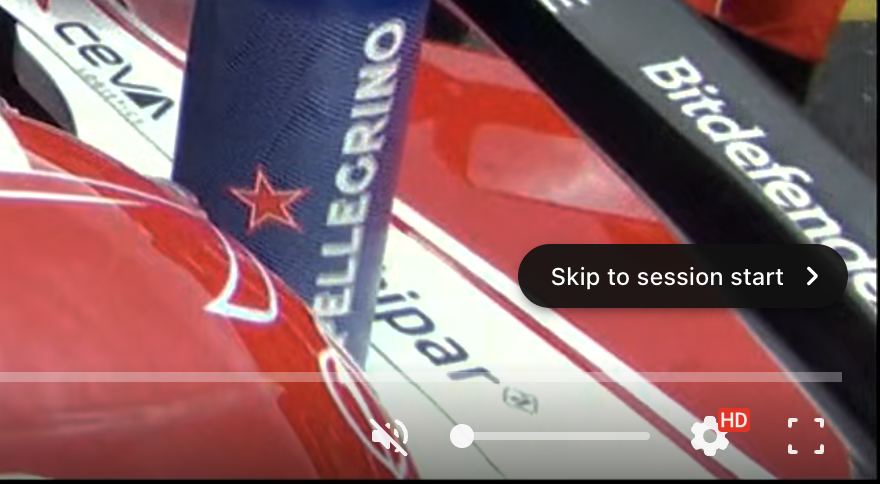
For a race or sprint it lands a minute before the session starts, so you still see the grid and the formation lap. For qualifying it's 30 seconds before, and for practice it's the green light itself.
On a replay that isn't synced yet there's no pill, but Shift + G still jumps a few minutes in, to roughly where sessions usually start.
Only the player you skip in moves. Press S in it afterwards to bring the others along.
Fine-tuning by hand
Use these when a session isn't synced yet, or when one stream is still off after a sync. Pick one stream as your reference, usually the international broadcast, and move the others to match it. That way you don't have to start over each time you add a stream.
Target latency on live streams
Target latency is how far behind live a player plays. If a stream shows things before your reference does, it's ahead: raise its target latency. If it shows them later, lower it. In the player:
- Arrow up raises the target latency by 1 second, Arrow down lowers it. Hold Shift for 0.1 seconds, Ctrl or Cmd for 0.5 seconds, or Alt for 0.02 seconds.
- R resets it to the player's default.
For a change of up to 10 seconds the player doesn't jump. It plays a little faster or slower until it reaches the new target, so wait for that before you judge the result. A bigger change jumps straight there while "Skip ahead to catch up" is on, which it is by default. A target below 15 seconds isn't recommended, because the player has little buffer left and may stall.
The latency tracker
The latency tracker is what keeps a live player at its target latency. Press Alt + L to turn it off or on. With it off, the player stops correcting drift. Seeking in a live player, changing its speed with [ or ], or stepping frames also turns it off, and a "Return to live" pill shows above the controls on the right. Click it or press L to go back to live and turn the tracker on again.
Live timing delay
During a live session, the main live timing window has a "Live delay (ms)" field in the bar at the bottom, which shows when you move the mouse. It's how far behind live the timing runs, in milliseconds. Type a value and press Enter or click "Apply". A higher value makes the timing run later. The next sync from a player replaces it.
Replays
Replays have no target latency. To nudge one player, pause it and step with , and . (one frame at a time, or 10 with Shift), or seek 1 second with Alt + Arrow left or Arrow right.
Latency settings
Settings › Playback › Latency has three options:
- "Default base latency" is the target latency a new live stream starts with, 30 seconds by default. Below 15 seconds playback may get unstable.
- "Target latency precision" is how far a stream can drift from its target before it's corrected, 0.075 seconds by default. A higher value changes the playback speed less often, but lets players drift further apart.
- "Skip ahead to catch up" decides what a live stream does when it falls far behind its target. On, it jumps ahead. Off, it speeds up so you don't miss anything. Syncing players always jumps.
Changing the default base latency resets the target latency of every open live player, so any changes you made by hand are lost.
If it still looks off
- Check the sync icon for the session in the schedule. If it's red, we haven't synced that session yet.
- Open Troubleshooting from the sidebar, or press Shift + T, and look at the "Server syncs" check. If it says "Wasn't able to retrieve syncs", MultiViewer can't reach our server, so quick sync has no offsets to work with. This is usually a network problem.
- If a synced session is still clearly off, let us know in our Discord community's #help channel. Tell us the session and which streams don't line up.
MultiViewer is an unofficial app and is not associated in any way with the Formula 1 companies. F1, FORMULA ONE, FORMULA 1, FIA FORMULA ONE WORLD CHAMPIONSHIP, GRAND PRIX and related marks are trade marks of Formula One Licensing BV. Watching F1 TV content in MultiViewer requires a paid F1 TV subscription, and MultiViewer doesn't help circumvent any content protection or limitations by F1 TV. MultiViewer is a non-commercial, fan-made application. Data is used for non-commercial, fair use. All product, team and company names are trademarks™ or registered® trademarks of their respective holders. Use of them does not imply any affiliation with or endorsement by them. Any product names, logos, brands, and other trademarks or images featured or referred to within the app are the property of their respective trademark holders. These trademark holders are not affiliated with MultiViewer or its contributors. They do not sponsor or endorse MultiViewer or any of our products.